The .git Folder Demystified: How Git Actually Works
A lot of tutorials out there present Git as just a bunch of commands to remember, like:
git add
git commit
git push
But Git really starts to make sense when you grasp what’s going on behind the scenes.
In this article, we’ll take a quick look at:
What the .git folder is all about
How Git organizes data with objects
What really takes place during git add and git commit
Why Git is so reliable and rarely loses your work
No intense theories here. No intimidating details.
Just a straightforward way to understand Git so it finally clicks for you!
The Hidden Brain of Git: The .git Folder
When you type:
git init
Git goes ahead and creates a hidden folder called .git.
This folder is basically the heart of the Git system for your project. Your actual files are stored outside of .git, but all the important stuff Git needs is kept inside it.
In the .git folder, you'll find:
The history of your project
All your commits
Every branch you've created
Important metadata
To sum it up, .git is like Git’s brain.
If you end up deleting the .git folder, your project won't crash, but you'll lose Git. Your code just turns back into a regular folder with no history, no versions, and no option to undo.
To think about it another way:
Project folder → where your working files are stored
.git folder → the memory of Git
As long as .git is around, Git keeps track of everything.
A Quick Peek at .git Folder
No need to memorize anything here—just get the gist
At its core, the .git folder has a few key components:
objects/ → this is where Git keeps all the data
refs/ → these are pointers to commits (like branches and HEAD)
HEAD → it tells Git where you are right now
index → contains details about the staging area
Of all these parts, the most crucial is definitely → objects/
Why's that?
Because everything Git knows—files, commits, history—ultimately resides there.
If you get a handle on objects/, you really get what Git's all about
Git Objects: The Building Blocks
Git stores data using four object types.
Blob
Tree
Commit
Tag
But we will focus on 3 main object types:-
Blob (File Content)
A blob is like a container for the content of a file—but it doesn’t include the filename.
Here are a few key points to keep in mind:
If the content is the same, it’s the same blob.
Git doesn’t care about the filenames.
Even if you have two files with identical content, Git will only store one blob for them.
So whether your file is named index.js or app.js, if they share the same content, Git thinks:
“Why store it twice?”
Tree (Folder Structure)
A tree is all about the structure of your project.
It holds information about:
The directory structure
The names of files
How everything is organized
Here's how it works:
It points to blobs (the files)
It can also point to other trees (like subfolders)
Think of it this way:
Blob → file content
Tree → folder layout
Trees give blobs a home
Commit (Snapshot + Metadata)
A commit is what brings it all together.
What’s inside a commit?
A reference to a tree (showing the project structure at that time)
Parent commit(s)
Author info
The commit message
It's important to change your perspective here. A commit is not a diff.
Rather, it’s a snapshot reference of your whole project at that specific moment
Git connects these snapshots efficiently, using objects—no duplication and no waste.
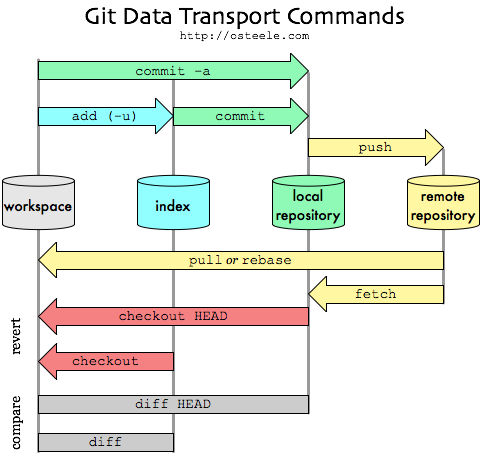
What Happens When You Use git add?
When you run:
git add file.js
Git doesn’t actually save a commit at that point. Instead, it’s busy doing some behind-the-scenes work.
Internally, Git carries out three straightforward steps:
Reads the file content - Git checks what’s in file.js.
Creates a blob (if it doesn’t already exist) - If it hasn’t saved that exact content before, it stores it as a blob.
Updates the staging area (index) - Git logs a reference to that blob in the staging area.
A few key things to keep in mind :
git add does not create a commit.
It simply gets the content ready for the next commit.
You can think of the staging area as you telling Git:
“Hey Git, I want this exact version saved next.”
Once it’s staged, the file is all set to be permanently logged with git commit.
What Happens When You Run git commit?
So, when you type:
git commit -m "message"
That's when Git locks everything in.
Here’s what goes on behind the curtain:
Makes a tree from the staged files - This tree shows the exact folder structure you want to save.
Creates a commit object - This commit points to that tree, and it saves details like the author and the message.
Links it to the last commit - This is how Git keeps a history instead of just random snapshots.
Moves HEAD forward - Now, HEAD points to your new commit.
And that’s pretty much it. No tricks, no confusion.
How Git Keeps Track of Everything (Its Amazing Memory)
Git uses SHA-1 hashes to identify everything.
Each hash comes from:
The content of the object
The type of object
Important metadata
So, what does this really mean?
Change even one character, and you’ll end up with a different hash.
Any corruption in the data can be detected right away.
You can’t change history without it being obvious.
That’s why Git is so dependable.
Finally we come to an end
You really don’t have to dive into the .git folder every single day. In fact, most developers don’t, and that’s totally fine.
But getting a grip on what Git actually is can make a big difference:
It’s a content-addressed database
It’s made up of simple objects
Everything’s linked using hashes
Knowing this stuff turns you into a confident Git user—not just someone who memorizes commands.
Once you grasp why Git operates the way it does, those commands stop feeling like magic and start making sense.


